日本語

DoTo? List

Act first, think along the way

Approval-based ToDo List App

Version 1.0.0
Download the User Manual (PDF)

A tutorial-style guide covering everything from basic app operations to the approval flow, with screenshots. (Japanese)

3-Minute Quick Start

Get a feel for the overall flow first

1 Check your day on Home Review today's tasks and this week's progress.
2 Check pending tasks See requests awaiting approval or sent back for revision.
3 Open details from email Use the link in the approval request email to open the web detail screen.
4 Approve or send back Review the content, then approve it or send it back.
START

Three things to remember first

  • The Home screen lets you switch between Normal, Pending, and Completed tasks.
  • Pending tasks go through a review and approval step before they are treated as complete.
  • You can handle everything on the web screen via the link in the approval request email.
TIP

Getting started

  • At first, just the Home screen, Pending tasks, and email-based approval are enough to understand the whole picture.

Screen Guide

A quick overview of what each screen is for

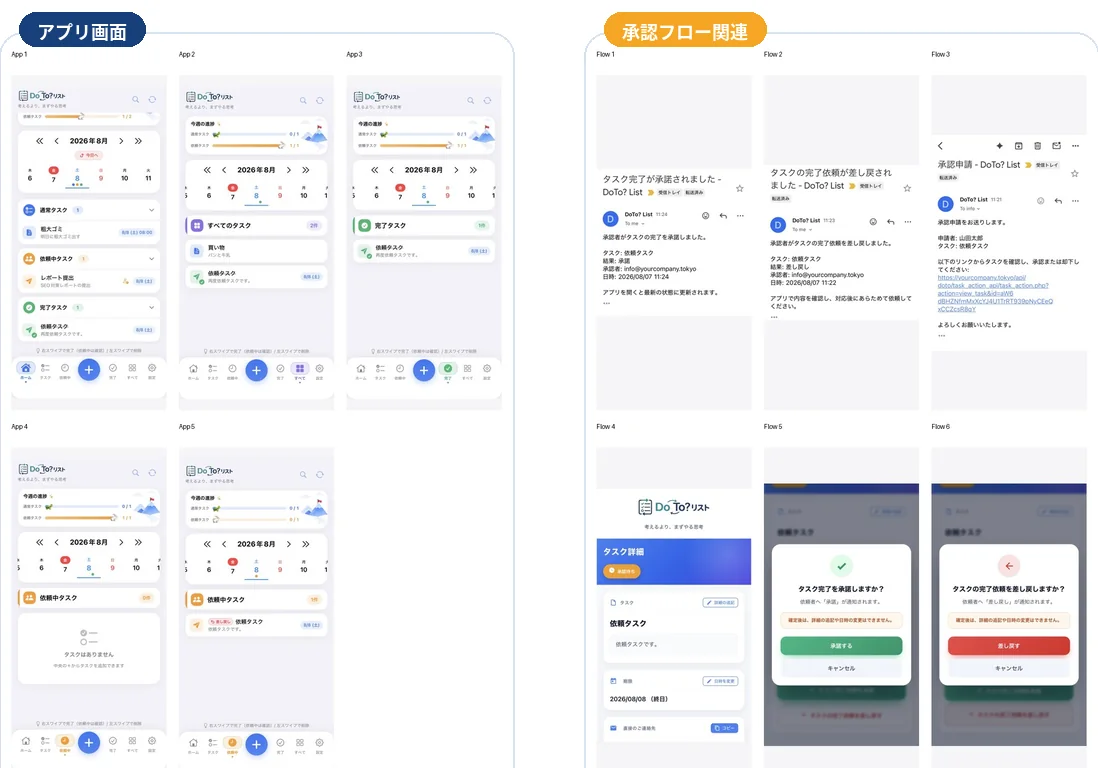
Overview of every screen: app screens such as Home, All, Completed, and Pending on the left; approval-related screens including the request email, web detail page, and the approve and send-back dialogs on the right. (Japanese)
The big picture: app screens on the left, approval-flow screens on the right.
Home Check today's status and your task list.
All View every task regardless of its status.
Completed Look back at tasks you have finished.
Pending Check items awaiting approval or sent back.
Email Receive approval requests and result notifications.
Web detail page Opened from an email link to approve or send back.
1

Reading the Home screen

See the day's schedule and status at a glance

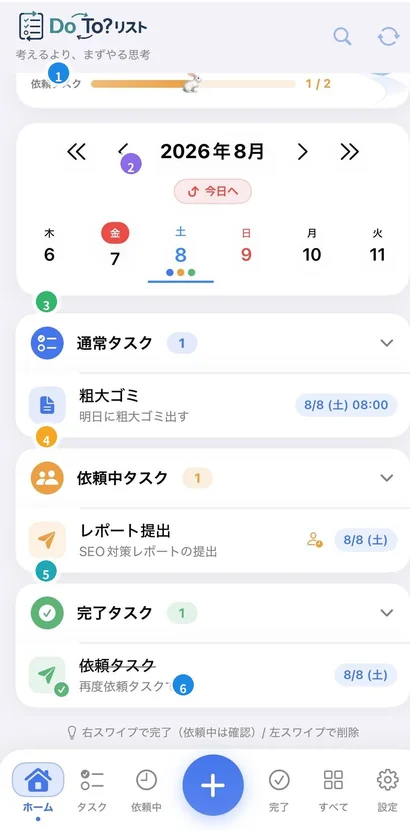
Screenshot of the Home screen, showing the progress bar and calendar at the top, then lists of normal, pending, and completed tasks above the bottom navigation.
  1. 1
    Top bar Logo, search, and refresh icons.
  2. 2
    Calendar Switch the target date to see that day's schedule.
  3. 3
    Normal tasks Your everyday tasks, shown as a list.
  4. 4
    Pending tasks Requests awaiting approval or currently in progress.
  5. 5
    Completed tasks Review tasks that are already done.
  6. 6
    Bottom nav Move to Home / Tasks / Pending / Completed / All / Settings.
POINT

Swipe actions

Swipe a task card right to complete it, left to delete it.

Pending tasks go through a review and approval flow before completion.

2

Progress bar and calendar

Key points for "This week's progress" and date selection

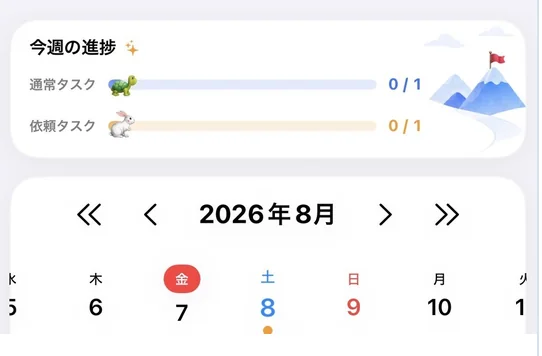
Screenshot of the "This week's progress" bar and the calendar, with a tortoise icon for normal tasks and a rabbit icon for requested tasks.
  1. 1
    Progress bar Normal tasks are shown as a tortoise, requested tasks as a rabbit. The number on the right shows completion status.
  2. 2
    Calendar The month appears in the center; use the arrows to move. Colored dots under a date mark registered tasks.
HOW TO

Suggested routine

Open Home in the morning, check the week with the progress bar, pick today (or the day you want to work on) in the calendar, then move to the task cards below.

3

Viewing all tasks

For when you want one list across every status

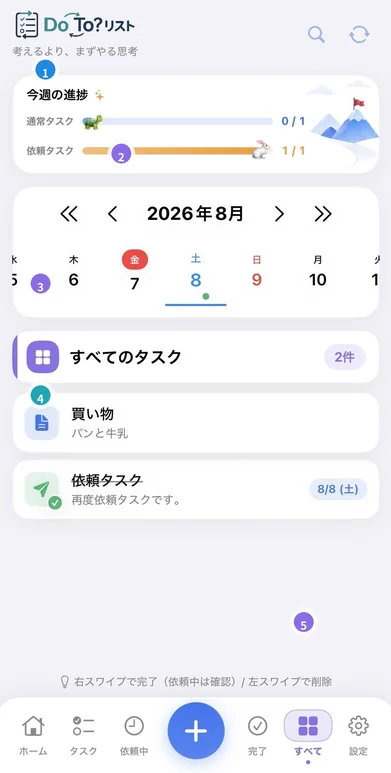
Screenshot of the "All" tab, listing the day's tasks regardless of status with the task count shown at the top right.
  1. 1
    Open the "All" tab Tap "All" in the bottom navigation.
  2. 2
    Check the count The count at the top right shows how many tasks are currently listed.
  3. 3
    Review the list Go through the day's tasks in order, regardless of status.
  4. 4
    Jump to other screens Move to Home, Pending, or Completed when you need more detail.
POINT

When to use it

Best when you want to see everything at once rather than filter by status.

Especially useful for a full review at the start of the workday.

4

Checking completed tasks

Look back at work that is finished

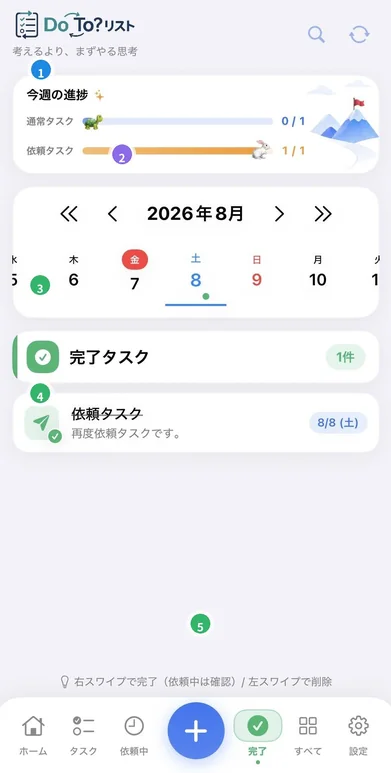
Screenshot of the "Completed" tab, showing finished tasks and how many there are.
  1. 1
    Open the "Completed" tab Tap "Completed" in the bottom navigation.
  2. 2
    Check the count See how many tasks were completed today or on the selected date.
  3. 3
    Review the content Both completed requested tasks and normal tasks appear in the list.
  4. 4
    Check the date The date on the right tells you which day the task belongs to.
POINT

Good to know

Handy when you need a record that something was handled.

Once a requested task moves to Completed, you can cross-check it with the result notification email.

5

Checking pending tasks

Awaiting approval and sent-back items in one place

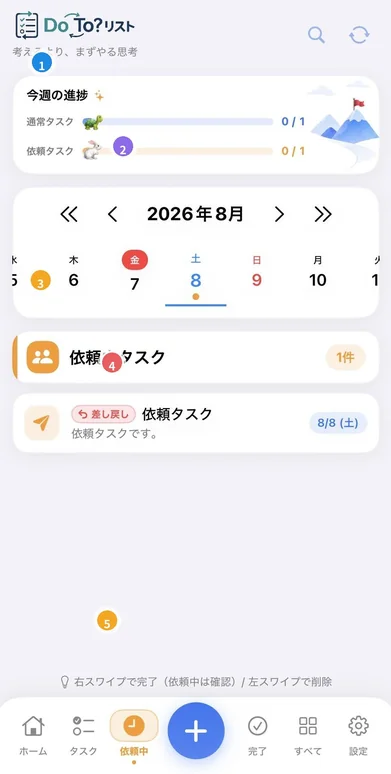
Screenshot of the "Pending" tab, showing a requested task marked with a pink sent-back label.
  1. 1
    Open the "Pending" tab Tap "Pending" in the bottom navigation.
  2. 2
    Check the count Shows how many requests are pending.
  3. 3
    Look for the sent-back label Tasks with a pink "sent back" label need another round of work.
  4. 4
    Request again after revising Once you have made changes, go through the request flow again.
  5. 5
    When there is nothing "No tasks" is displayed.
POINT

Purpose

This screen shows requests awaiting approval and those sent back, so you can immediately see whether follow-up is needed.

Requested task lifecycle

From creating a request through to completion

  1. 1 Create a requested task in the app
  2. 2 It appears as a pending task
  3. 3 An approval request email arrives
  4. 4 Review on the web detail page
  5. 5 Approve or send back
  6. 6 Check the result notification email
  7. 7 Request again if needed, or complete
FLOW

Worth remembering

Being sent back is not a failure — it is simply the result of a review. Revise the content, request again, and the same flow takes it through to completion.

6

Reviewing an approval request by email

How to read the approval request email

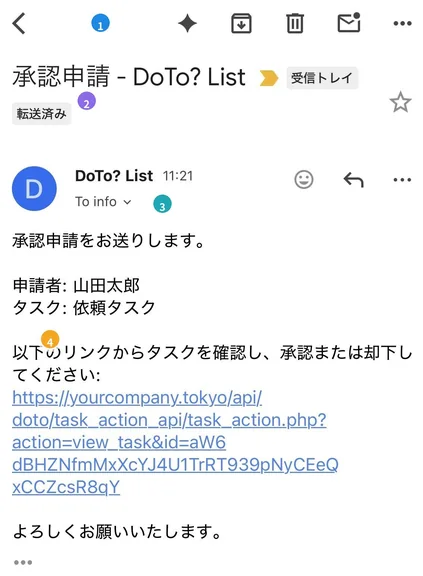
Screenshot of an approval request email with the subject "Approval Request - DoTo? List", the requester and task names, and the approval link. (Japanese)
  1. 1
    Check the subject Look for "Approval Request - DoTo? List".
  2. 2
    Check sender and recipient Confirm which address the request was sent to.
  3. 3
    Check requester and task name Identify whose request it is and which task it covers.
  4. 4
    Open the link in the body Tapping the link opens the web detail page.
POINT

Important

Opening the email alone does not complete the approval.

You must select "Approve" or "Send back" on the linked web detail page.

7

Reviewing the web detail page

Final check on the page linked from the email

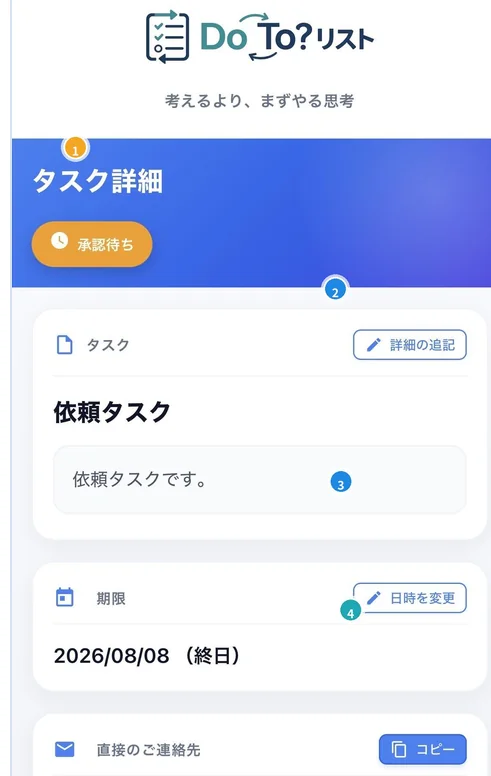
Screenshot of the web detail page, showing the awaiting-approval label, task details, due date, and direct contact address. (Japanese)
  1. 1
    Awaiting-approval label Indicates the task is waiting for review.
  2. 2
    Task details Check the request name and its content.
  3. 3
    Due date Confirm the date, time, and all-day setting.
  4. 4
    Direct contact Copy the contact address if you need to reach out.
POINT

What comes next

If everything looks right, choose "Approve". If changes are needed, choose "Send back".

8

Approving

What to do when the content is fine

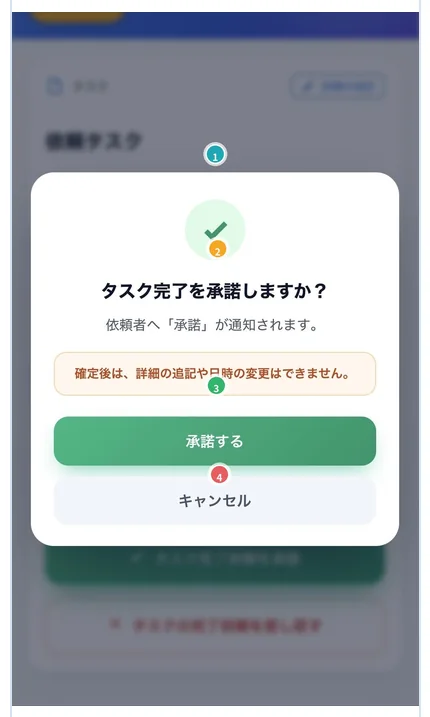
Screenshot of the approval confirmation dialog, headed "Approve task completion?" with a green Approve button. (Japanese)
  1. 1
    Read the confirmation dialog It notes that details can no longer be changed after approval.
  2. 2
    Re-check the task content Go back if you want to review the due date or details again.
  3. 3
    Tap "Approve" Confirm with the green button.
  4. 4
    Check the notification The requester is notified, and you can also confirm via the result email later.
POINT

Important

After approval, the due date and details can no longer be edited or added to.

If anything at all concerns you, it is perfectly fine to send it back before approving.

9

Sending back

What to do when revisions or another look are needed

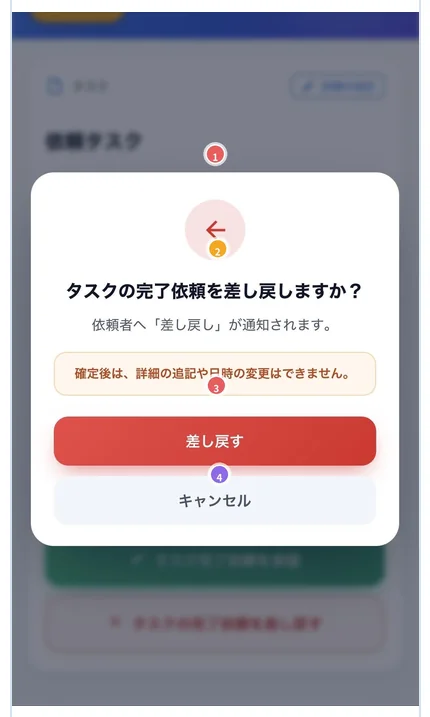
Screenshot of the send-back confirmation dialog, headed "Send back the task completion request?" with a red Send back button. (Japanese)
  1. 1
    Read the send-back dialog This action also locks the details from further changes.
  2. 2
    Note what needs fixing Share any additional context via the contact address if needed.
  3. 3
    Tap "Send back" Confirm with the red button.
  4. 4
    Wait for the new request The requester reviews and revises, then submits again.
POINT

Good practice

After sending back, you can track the status on the Pending screen or in the send-back notification email.

Adding a short note about why you sent it back keeps things moving smoothly.

10

Result notification emails

Confirming approval, send-back, and completion

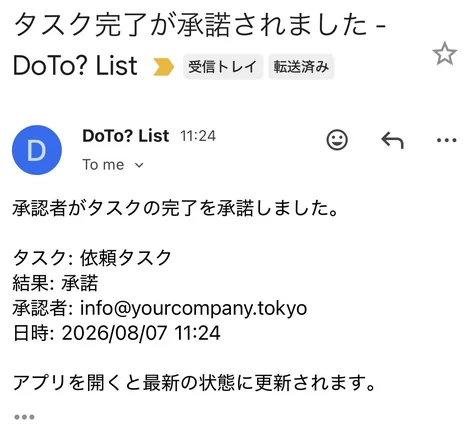
Screenshot of an approval notification email showing the task name, the result "approved", the approver, and the timestamp. (Japanese)
POINT

Approval notification

Arrives with the subject "Task completion approved". Opening the app refreshes it to the latest status.

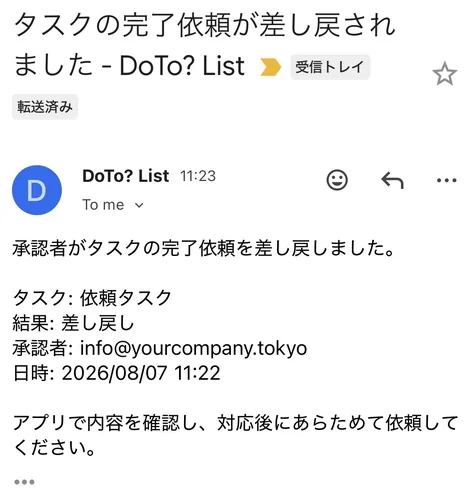
Screenshot of a send-back notification email showing the task name, the result "sent back", the approver, and the timestamp. (Japanese)
POINT

Send-back notification

Arrives with the subject "Task completion request was sent back". Review the content and follow up.

POINT

How completion works

When a task is approved rather than sent back, it is organized as completed. The "Completed" tab is the easiest place to check history.

POINT

Email tips

Use notification emails to confirm results, but also check the actual status in the app. After a send-back in particular, review the Pending screen as well.

Key Features

Approval-based task management Requested tasks are completed only after the approver reviews them.
Normal / Pending / Completed Switch between task states to review them.
Calendar and progress bar Pick a date and see this week's achievement at a glance.
Email approval flow Approve or send back directly from a web page linked in the email.
Google sign-in Sign in securely with your Google account.
Push notifications Receive approval requests and results as notifications.
Due dates and reminders Manage due dates, times, and all-day settings.
Multi-language support Available in Japanese and English.

Frequently Asked Questions

Tap a question to reveal the answer.

Basic operations

Which screen should I check first each morning?
The Home screen. Going progress bar → calendar → task cards makes the flow easiest to follow.
How do I complete or delete a task?
Swipe a task card right to complete it, left to delete it. For pending tasks, swiping right starts the review flow.
What is the difference between "All" and "Home"?
Home groups tasks by status, while "All" lists everything across statuses. "All" is better for a full review at the start of the day.
What are the dots under the calendar dates?
They mark days that have registered tasks. A colored dot means at least one task exists on that day.
What do the tortoise and rabbit on the progress bar mean?
The tortoise represents normal tasks and the rabbit represents requested tasks. The number on the right shows this week's completion status.
How do I look back at history?
Use the Completed screen or the result notification emails.

Approval flow

How does task approval work?
When creating a task, enter the approver's email address. An approval request email is sent to them; they open the web detail page from the link in the email and choose "Approve" or "Send back".
I am not sure whether to approve.
Check the due date, content, and contact address. If you are still unsure, it is perfectly acceptable to send it back for clarification before approving.
What should I do when something is sent back?
Check the Pending screen and the send-back email, reach out with any clarification if needed, then submit the request again. A send-back is not a failure — it is the result of a review.
Can I change the content after approving?
No. Once you confirm an approval or a send-back, the due date and details can no longer be edited or added to. Review carefully before confirming.
Does opening the email count as approval?
No. You must select "Approve" or "Send back" on the linked web detail page.
How do I contact the approver?
Copy the address under "Direct contact" on the web detail page.

Notifications and email

Push notifications are not received.
Please check that app notifications are enabled in your device notification settings.
Is checking email enough?
Email is the entry point for notifications. Confirm the final status in the app as well — on Home, Pending, or Completed.
The approval request email did not arrive.
Check your spam folder. If it is still missing, verify that the approver's email address was entered correctly when the task was created.
What are the result email subjects?
Approvals arrive as "Task completion approved - DoTo? List", and send-backs as "Task completion request was sent back - DoTo? List".

Account and settings

Cannot login with Google authentication.
Please check your internet connection and Google account settings. If the problem persists, try restarting the app.
How do I change the language?
You can select Japanese or English from the "Language" section in the Settings screen.
The latest status is not showing.
Tap the refresh icon at the top of the screen, or reopen the app to load the latest status.

Troubleshooting

What to check first, organized by symptom.

Symptom What to check
A requested task never completes It may be waiting on the approver. Check its status on the "Pending" tab.
A task has a sent-back label Follow-up is required. Revise the content and go through the request flow again.
The approval link will not open Check that the link in the email is not broken across lines; copy the whole link and paste it into a browser.
"No tasks" is displayed There are no tasks on the selected date. Choose another date in the calendar, or check the "All" tab.
Duplicate notifications arrive Check the Pending screen to see whether the same request was created more than once.
None of the above helps Contact us below with the date and time it occurred, the task name, and a screenshot.

Glossary

Normal task
A task you can complete on your own, with no approval required. Shown as a tortoise on the progress bar.
Requested task
A task that becomes complete only after an approver reviews it. Shown as a rabbit on the progress bar.
Pending
Awaiting approval, or being reworked after being sent back.
Approve
Reviewing the task content and formally accepting the completion.
Send back
Asking the requester for another round of work when revisions or more context are needed.
Completed
A task that has been handled and organized as done. Review it on the "Completed" tab.
Requester
The person who creates a requested task and asks for approval.
Approver
The person who reviews the request and approves or sends it back.
Web detail page
The page opened from the approval request email, used to approve or send back.
Contact Us

If you have technical issues or questions, please contact us using the following methods.

Email Address: contact@point.tokyo

We typically respond within 24 hours.

To help us respond quickly, please include the date and time of the issue, the task name, and your device and OS version.