Key Features
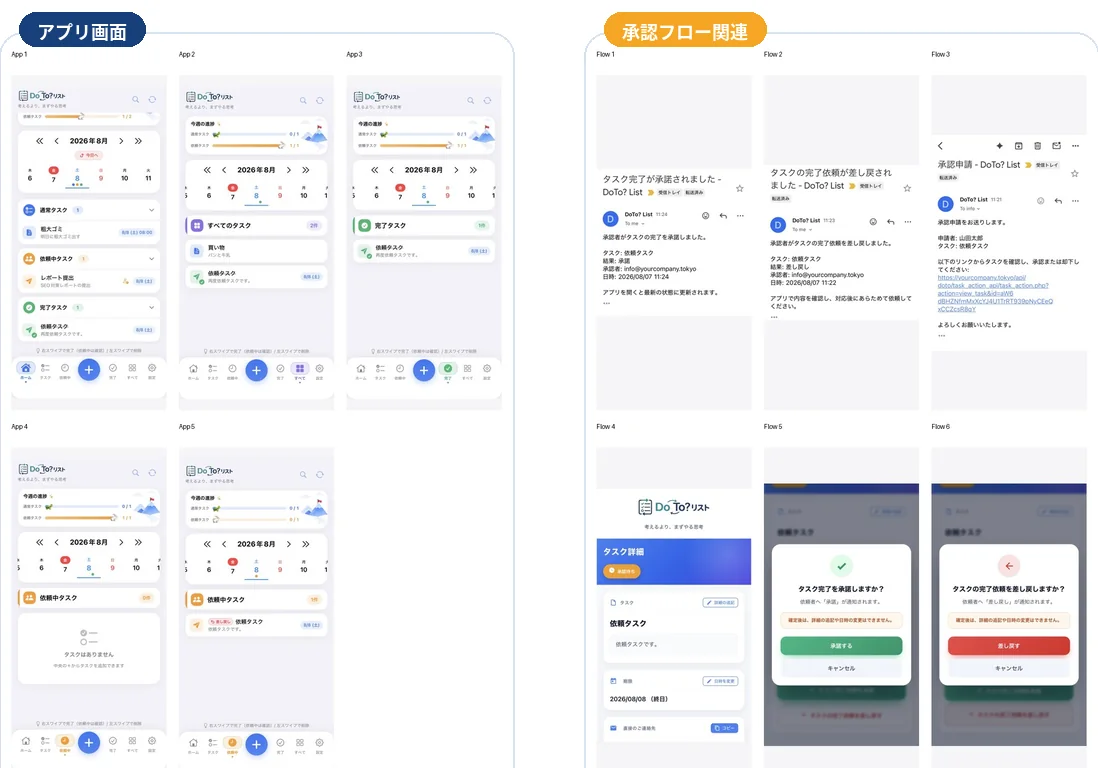
Approval-based task management
Requested tasks are completed only after the approver reviews them.
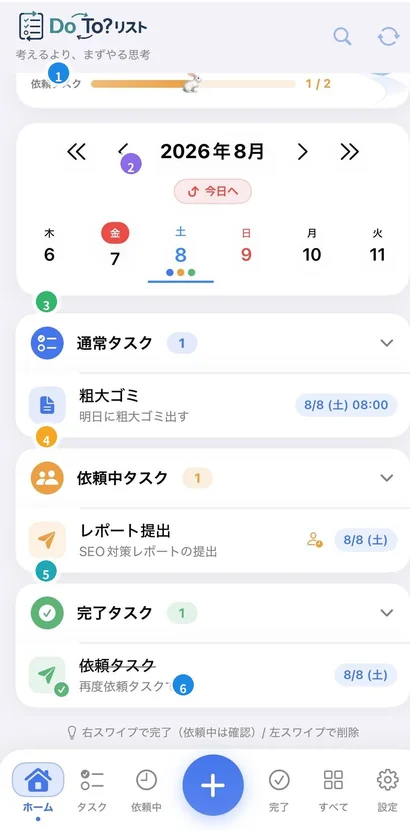
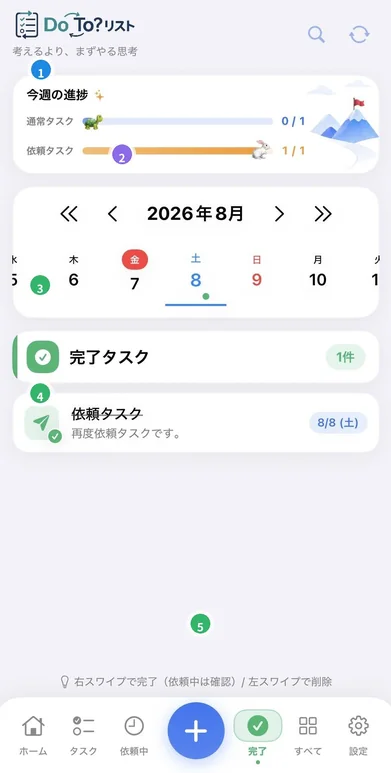
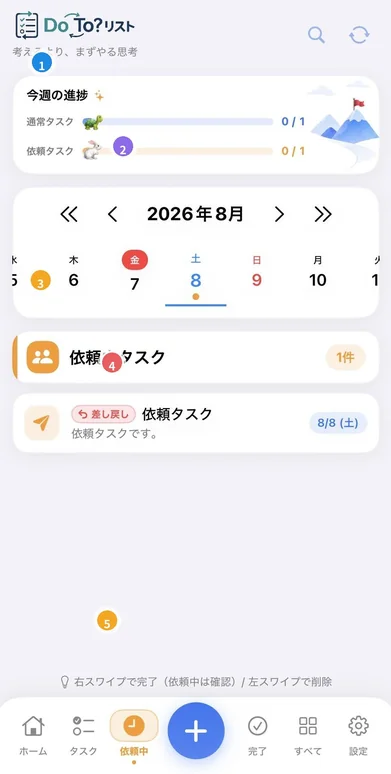
Normal / Pending / Completed
Switch between task states to review them.
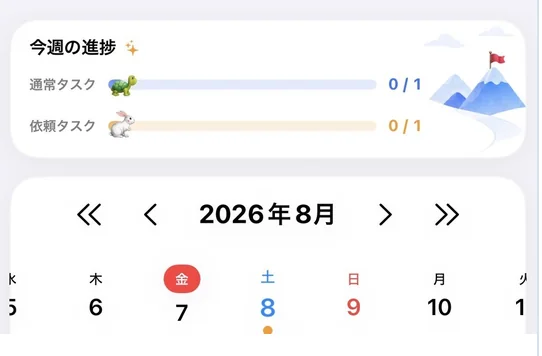
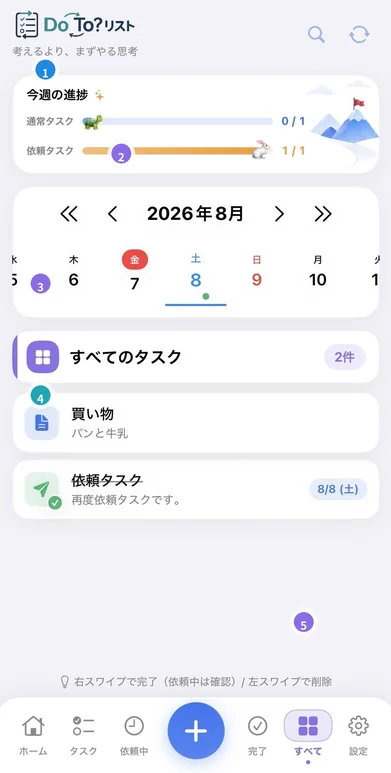
Calendar and progress bar
Pick a date and see this week's achievement at a glance.
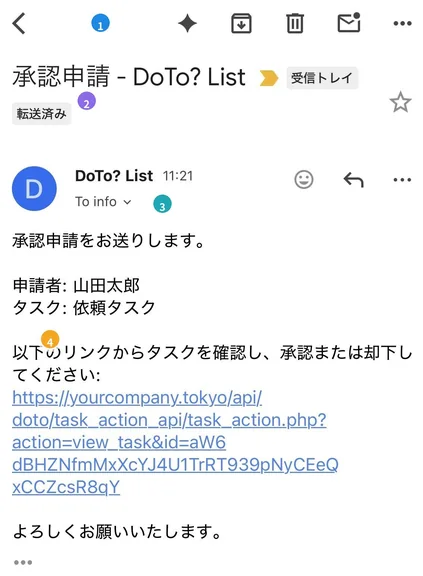
Email approval flow
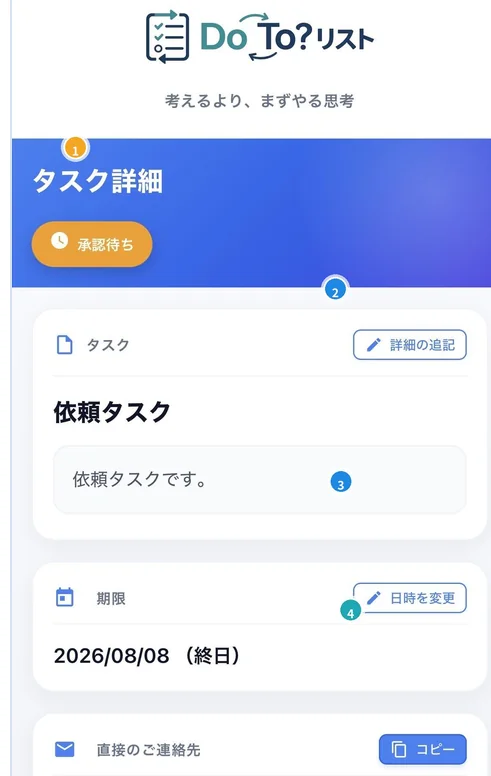
Approve or send back directly from a web page linked in the email.
Google sign-in
Sign in securely with your Google account.
Push notifications
Receive approval requests and results as notifications.
Due dates and reminders
Manage due dates, times, and all-day settings.
Multi-language support
Available in Japanese and English.
Frequently Asked Questions
Tap a question to reveal the answer.
Basic operations
Which screen should I check first each morning?
The Home screen. Going progress bar → calendar → task cards makes the flow easiest to follow.
How do I complete or delete a task?
Swipe a task card right to complete it, left to delete it. For pending tasks, swiping right starts the review flow.
What is the difference between "All" and "Home"?
Home groups tasks by status, while "All" lists everything across statuses. "All" is better for a full review at the start of the day.
What are the dots under the calendar dates?
They mark days that have registered tasks. A colored dot means at least one task exists on that day.
What do the tortoise and rabbit on the progress bar mean?
The tortoise represents normal tasks and the rabbit represents requested tasks. The number on the right shows this week's completion status.
How do I look back at history?
Use the Completed screen or the result notification emails.
Approval flow
How does task approval work?
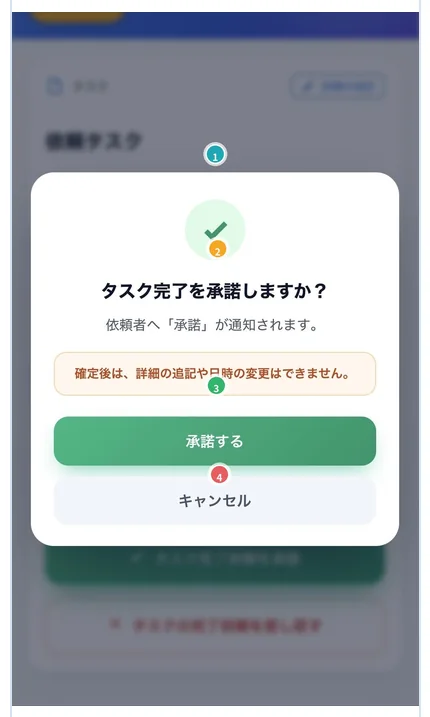
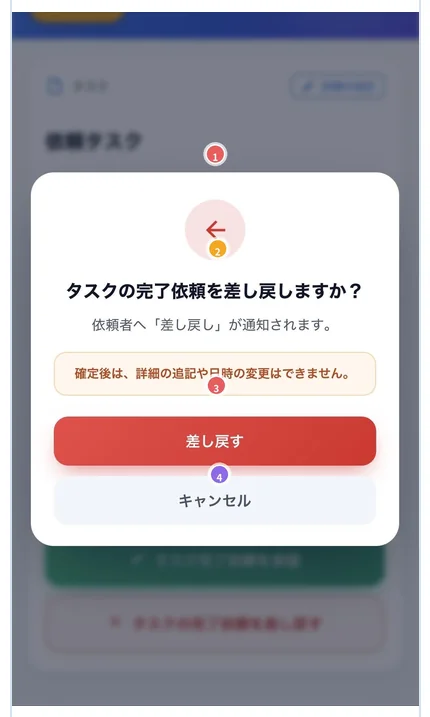
When creating a task, enter the approver's email address. An approval request email is sent to them; they open the web detail page from the link in the email and choose "Approve" or "Send back".
I am not sure whether to approve.
Check the due date, content, and contact address. If you are still unsure, it is perfectly acceptable to send it back for clarification before approving.
What should I do when something is sent back?
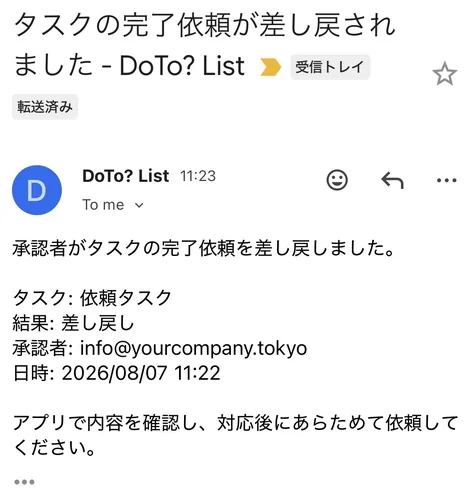
Check the Pending screen and the send-back email, reach out with any clarification if needed, then submit the request again. A send-back is not a failure — it is the result of a review.
Can I change the content after approving?
No. Once you confirm an approval or a send-back, the due date and details can no longer be edited or added to. Review carefully before confirming.
Does opening the email count as approval?
No. You must select "Approve" or "Send back" on the linked web detail page.
How do I contact the approver?
Copy the address under "Direct contact" on the web detail page.
Notifications and email
Push notifications are not received.
Please check that app notifications are enabled in your device notification settings.
Is checking email enough?
Email is the entry point for notifications. Confirm the final status in the app as well — on Home, Pending, or Completed.
The approval request email did not arrive.
Check your spam folder. If it is still missing, verify that the approver's email address was entered correctly when the task was created.
What are the result email subjects?
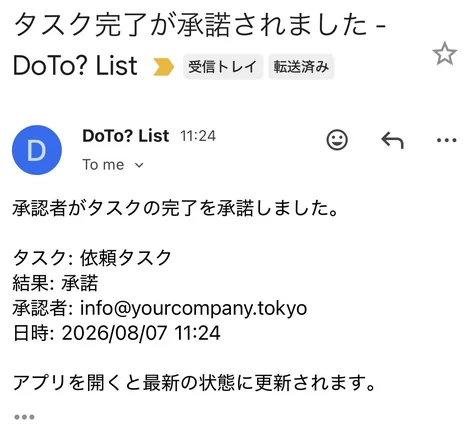
Approvals arrive as "Task completion approved - DoTo? List", and send-backs as "Task completion request was sent back - DoTo? List".
Account and settings
Cannot login with Google authentication.
Please check your internet connection and Google account settings. If the problem persists, try restarting the app.
How do I change the language?
You can select Japanese or English from the "Language" section in the Settings screen.
The latest status is not showing.
Tap the refresh icon at the top of the screen, or reopen the app to load the latest status.
Glossary
- Normal task
- A task you can complete on your own, with no approval required. Shown as a tortoise on the progress bar.
- Requested task
- A task that becomes complete only after an approver reviews it. Shown as a rabbit on the progress bar.
- Pending
- Awaiting approval, or being reworked after being sent back.
- Approve
- Reviewing the task content and formally accepting the completion.
- Send back
- Asking the requester for another round of work when revisions or more context are needed.
- Completed
- A task that has been handled and organized as done. Review it on the "Completed" tab.
- Requester
- The person who creates a requested task and asks for approval.
- Approver
- The person who reviews the request and approves or sends it back.
- Web detail page
- The page opened from the approval request email, used to approve or send back.